

How to Pick Up Your Items
BidBolt uses a self-service pickup model. You schedule a time, come to our warehouse, find your items on the racks, and bring them to checkout. This guide walks you through every step so you know exactly what to expect.
Quick Overview
Pickup Window
3 days
Hours
Vary by day
Location
Phoenix, AZ
Check-in
On your phone
Step-by-Step Pickup Process
Follow these 7 steps for a smooth, hassle-free pickup experience.
Win an Auction or Buy an Item
Your pickup journey starts when you win an auction or purchase an item with local pickup selected. Once the sale is finalized, the item moves to a "Ready for Pickup" status and appears in your My Pickups dashboard.
You'll receive an email and push notification letting you know your items are ready and it's time to schedule your visit.
Schedule Your Pickup
Go to My Pickups and you'll see a calendar and time-slot picker. You'll have a pickup window (shown on the scheduler) starting the day after your win to schedule your visit. Your pickup deadline is based on your oldest unpicked order — new orders do not extend the window.
Important: Items not picked up within the pickup window may be restocked. Make sure to schedule your pickup on time!
- Open hours: Vary by day — the scheduler only shows days and times we're open
- Time slots: Choose from the available slots shown on the calendar — slots that are full will be grayed out
- Confirmation: You'll receive an email and push notification confirming your scheduled slot
Arrive at the Warehouse
On your scheduled day, head to our warehouse location:
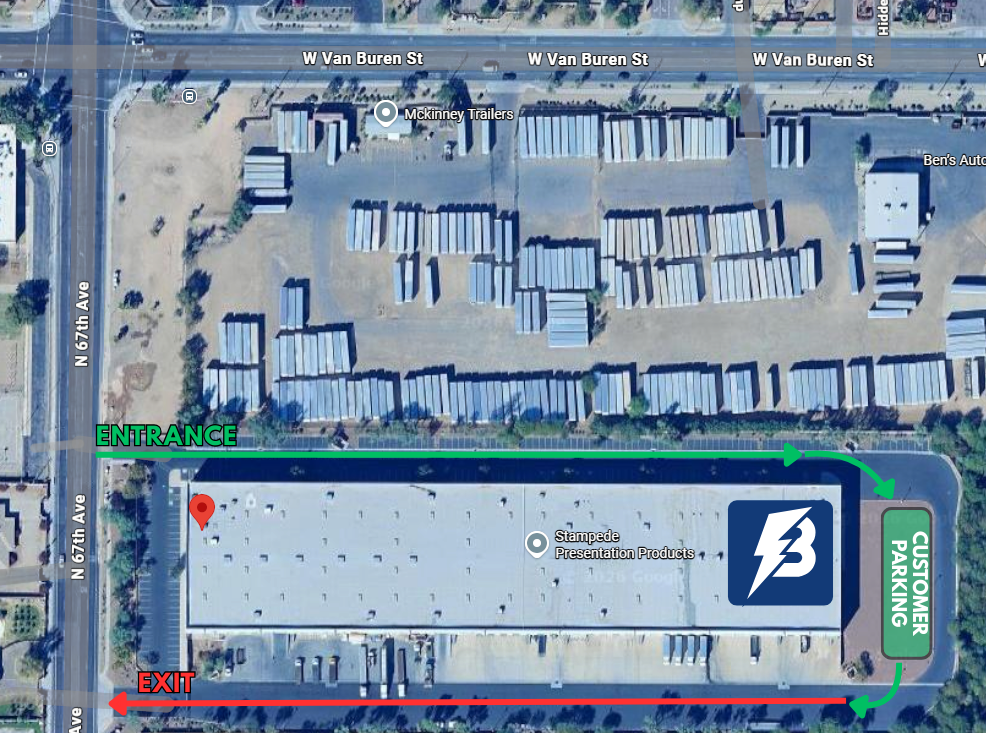
When you arrive, park in any available spot and head to the entrance. Look for the BidBolt signage — our staff will be inside and happy to point you in the right direction if it's your first visit.
Check In — Tap "I'm Here"
Once you're at the warehouse, open BidBolt on your phone and go to My Pickups. You'll see a large green "I'm Here" button.
Tap it to check in. This lets our system know you've arrived and activates your item finder — a handy tool that shows you exactly where each of your items is located in the warehouse.
After checking in, your status changes to "Checked In" and you're ready to start picking!
Find Your Items on the Racks
After checking in, your screen will show the Item Finder. Each item in your order displays:
- Photo — so you know exactly what you're looking for
- Tracking ID — a unique code printed on the item's label
- Rack / Bin Location — tells you which aisle and shelf the item is on
Walk through the warehouse, find the right rack, and locate your item. You can also scan the barcode on an item using your phone's camera to instantly highlight it in your list and confirm it's the right one.
Barcode scanning is optional but makes the process faster and more accurate — especially if you have multiple items.
Bring Items to the Checkout Counter
Once you've gathered all your items from the racks, bring them to the checkout counter near the front of the warehouse.
A staff member will scan each item's barcode to verify it matches your order. This ensures every item being taken home belongs to you and prevents mix-ups.
- Staff will scan each item — you don't need to do anything
- The system will confirm each scanned item in real time
- If an item can't be found, staff will help you locate it
Sign, Confirm & Go!
After all items are scanned and verified, you'll be asked to review and sign on a digital pad to confirm:
- All items in your order are accounted for
- You've inspected the items and accept their condition
- You understand the return and refund policy
That's it — you're done!
Your pickup is marked as complete and you can head home with your items. A confirmation email is sent automatically.
Frequently Asked Questions
What if I can't find one of my items on the racks?
No worries! Our staff is always nearby to help. Let someone at the checkout counter know and they'll track down the item for you.
Can someone else pick up my items for me?
Currently, only the account holder can check in and pick up items, since verification is tied to your BidBolt account. Contact support if you need special arrangements.
What happens if I miss my pickup window?
Items not picked up within the window may be restocked and resold. If you know you'll be late, contact our support team as soon as possible to discuss your options.
Do I need to bring anything with me?
Just your smartphone with the BidBolt app (or website) — you'll need it to check in and access the item finder. No printed confirmation needed.
Is there a loading dock for large or heavy items?
Yes! If you've won large or heavy items, you can pull up to our loading area. Ask staff at the checkout counter and they'll direct you.
Can I schedule multiple pickups?
You can schedule one pickup at a time. Once a pickup is completed, you can schedule another for any new items you've won.
Ready to Pick Up?
Head to your Pickups dashboard to schedule your visit or check in when you arrive.